Showing posts with label Painting Process. Show all posts

SpongeBob Cover Process Sketches

0 comments
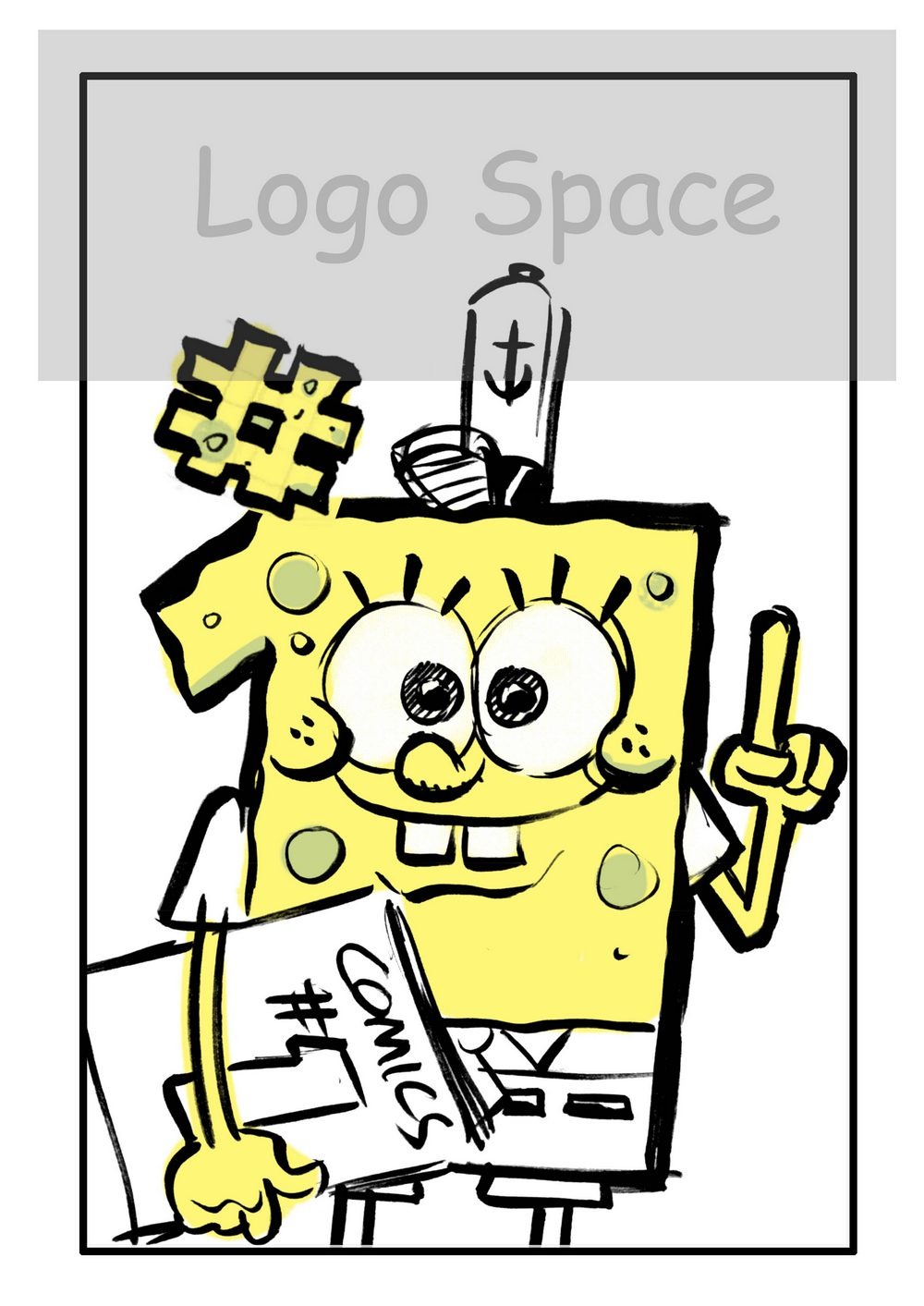
SB_Page Template
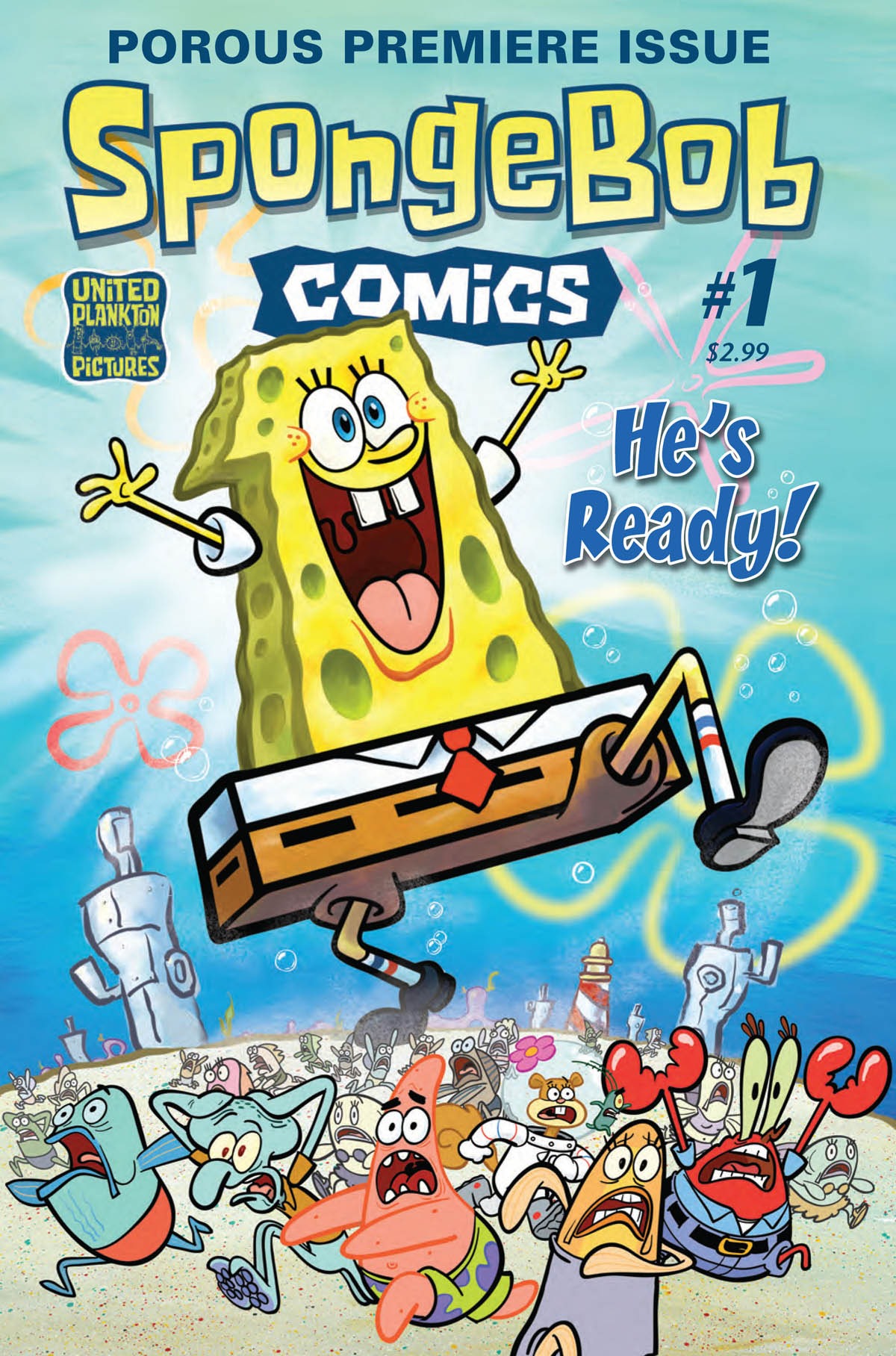
SpongeBob-Comics-Cover-Sketch-Bongo-07Last year I had the pleasure of drawing and painting the cover for the first issue of SpongeBob Comics (see above).

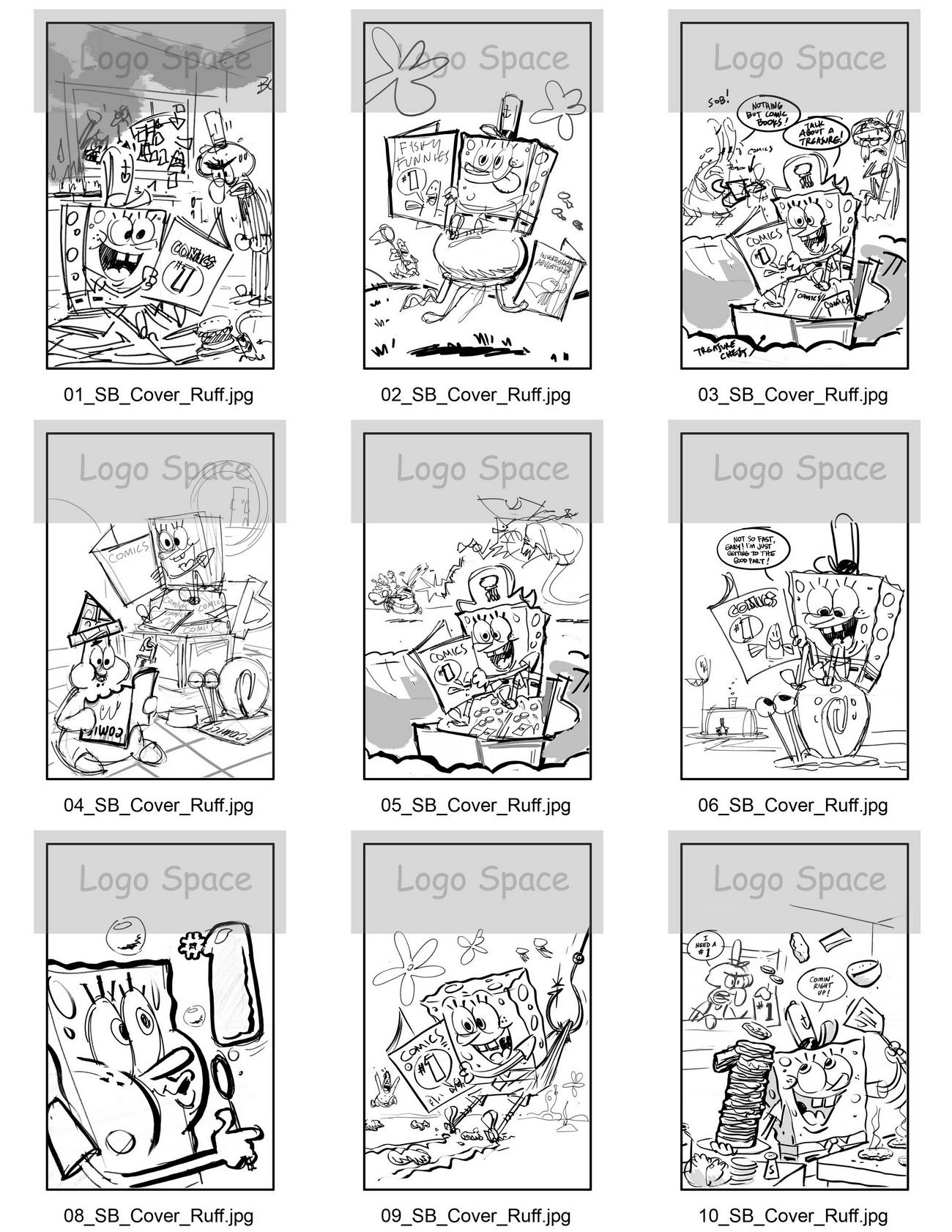
Being the first issue, there was a LOT of behind-the-scenes work – we all wanted to give this cover a lot of impact! Here’s a look at some of the various sketches that I drew in the process of developing the cover…

SpongeBob Comics Bongo Cover Roughs sheet 1250px
Click on the images above to get a bigger look at all those little sketches.

Here’s a look at the finished pencil art (below)…
SB comic cover pencils v5_small
…and in the next few days I’ll be going into more detail with a lot more raw sketches from the SpongeBob Comics cover project. Check back soon for more Smile

We Start INKING in Adobe Illustrator Process Video #4

0 comments
Video #4 - Let's Start INKING!
SpongeBob inking Adobe Illustrator tutorial video by Sherm Cohen
Click on image - video will open in new window
(There's also a smaller version at the bottom of the post in case you have trouble watching the large video)

Okay, this is what we've been building up to!

In today's video, you can watch as I start inking the SpongeBob illustration in real time. All of these videos were recorded while I was working on the new cover illustration for Nickelodeon magazine -- so you're seeing all of the actual work that went in to creating that image.

There's no retakes here -- everything is live -- just as it happened. The only thing I trimmed out were the pauses.

SpongeBob inking tutorial Adobe Illustrator corners

Using Adobe Illustrator for inking and clean-up has allowed me to take on jobs that I would have had to turn down in the past. Getting a piece of art to look this cleaned up would cause permanent injury to my hands and my wrists if I had to do it with regular pen and ink and brush. It also would have taken forever and a day if I were using traditional materials.

SpongeBob inking tutorial Adobe Illustrator cleaning mistakes

One of the unexpected benefits of inking in Adobe Illustrator is that my line has become a lot more spontaneous -- I can be a lot more fast and spontaneous with the brush since I know that I can press "undo" if I make a bad line.

SpongeBob inking tutorial Adobe Illustrator outline

I'm hoping that once you see this in action, you'll be inspired to give it a try yourself. If you already own Adobe Illustrator as part of one of the Adobe suites, you really owe it to yourself to make the most out of your investment. If you don't own Adobe Illustrator, but you'd like to learn... you can download a free 30 day trial from the Adobe website.

Here's a smaller version of the video if you're having trouble loading the big video:


The next video might be a little bit boring, but it covers some very vital topics. Even though it appears to be focusing on Adobe Illustrator's ellipse tool, it will also show how to copy, paste and reuse drawing elements to save you time and effort. I will also be demonstrating how to use the Illustrator pencil tool to reshape a technically perfect shape into something more appropriate for a hand drawn image. See you then!

If you want to keep up with all the videos,
here's where to find the first three lessons:
here is an updated list of the
Adobe Illustrator
Cartoon Inking tutorial videos:
...and of course the completed Nick Mag cover art is at:
SpongeBob and Patrick Blowing Bubble Gum Nick Magazine Cover art by Sherm Cohen

Illustrator Process Video #3 - Freehand Brushes for Cartoon Style Inking

0 comments
Video #3 - Freehand BRUSH Tool
SpongeBob Illustrator inking tutorial on Brushes
Click on image - video will open in new window
(There's also a smaller version at the bottom of the post in case you have trouble watching the large video)


Okay -- here's where it starts getting fun!
We're going to be covering the freehand brush tool in today's Adobe Illustrator Inking Tutorial video
SpongeBob Illustrator inking tutorial calligraphic Brush strokes
Adobe Illustrator inking tutorial custom Brushes palette

The freehand brush seems to be one of the least-known features in Adobe Illustrator. Most people associate Illustrator with very clean and technical lines -- and not the hand-drawn look that traditional cartoons and comic books use. It turns out, though, that Adobe Illustrator is a fantastic tool for doing comic book inking and cartooning cleanups still have that spontaneous & freehand look.
SpongeBob Illustrator inking tutorial calligraphic Brush strokes

I want to make sure to point out that you'll need some sort of pressure-sensitive drawing tablet to get all the calligraphic effects that I'm going to be showing in this video. The most common drawing tablets are made by Wacom, and they range in price from under $99 for the Bamboo Fun to "an arm and a leg" for the Cintiq. All of these brush effects can be done with even the simplest and the smallest drawing tablet (as long as it supports pressure sensitivity).
Adobe Illustrator inking tutorial Brushes angle settings

A lot of people complain that the hand-drawn lines that they try to draw with the freehand brush tool become distorted as soon as the line has finished being drawn. That problem will be corrected if you copy the brush settings that I use in this video. Of course, I also encourage everybody to play with those settings and customize to them to your own specific needs.
Adobe Illustrator inking tutorial Brushes diameter settings
Adobe Illustrator inking tutorial Brushes line variation

Today's video will show you how to find and use the custom brushes that I included in the downloadable template, and it also shows you exactly how to customize and create your own custom freehand brushes. Once all that information has been covered, will be ready for tomorrow's video -- when I actually start INKING the darn thing! So be sure to come back for the next episode, too!
Here's a smaller version of today's video if you're having trouble viewing the larger version:


If you want to keep up with all the videos, here's where to find the first two lessons:

Making of a SpongeBob Cover Part 2 -- Step-by-Step from Sketch to Print

0 comments
SpongeBob Nick Mag Bubble cover published 800

The whole Nick Mag cover process
(just like everything else in life)
starts with an idea.

For this SpongeBob cover, the idea was pretty loose -- just some gag featuring SpongeBob and Patrick blowing bubblegum bubbles.

So, how do I come up with a gag when I have just the beginning of an idea? I just start sketching. Even if I don't have a clue where I'm going, I know that if I put the pencil on the paper, something's going to come out. Even if the first few ideas are totally crappy, that pile of rejects will start to point me in the right direction.


Drawing a cover gag is sort of like drawing a single-panel gag cartoon with handcuffs on.

You can't use a caption or dialogue, and you have to fit everything within the magazine's template, leaving room for logos and headlines.
SBgum08
So even if you have a good idea, it still may not work ...unless you can make it read from a distance.


Those magazine racks are pretty crowded, and if the drawing is too complicated, it just turns into mush.

SpongeBob_Patrick_trapped_Bubble_Gum_sketch
I liked this idea of SpongeBob, trapping Patrick inside of a bubblegum bubble,
but the size relationships were too far off to make this work.


I thought something with Gary might be nice

-- there are a lot of Gary the snail fans -

- but the Gary bubble wasn't looking like gum anymore.
SpongeBob_Gary_Bubble_rough

SpongeBob_Jellyfish_Patrick_Bubble_Gum_ideas_small

I've done a lot of drawings were SpongeBob is blowing soap bubbles, and I didn't want this drawing to look too much like one of those. That's the same reason, I tossed out the ideas where SpongeBob is blowing a square bubble or a Patrick-shaped bubble.

SpongeBob_Patrick_Bubble_Gum_ideas_smaill

SpongeBob_Cover_Bubble_Gum_Rough_out SpongeBob_NickMag_Bubble_Gum_Rough_no

I came up with the final idea by using a technique that has helped me many times in the past -- if I start to think vertically, a fresh idea will frequently pop up. By "vertically," I mean, getting the characters off of the same level. I tend to start out any scene by having all the characters standing on the same piece of ground, but this default position often leads to boring compositions.

On the SpongeBob TV show, we sometimes got a lot of humor out of having one of the characters enter a scene sideways or downward from above.

By moving the characters around vertically, I was also able to take a damage of the vertical aspect ratio of the cover itself.
SpongeBob_NickMag_Bubble_Gum_Rough_comp
SpongeBob_Patrick_Bubble_Gum_Pencils

Even though
I only liked
one of the ideas,
I submitted four different sketches.

I was really hoping that they'd pick the one that I liked... and fortunately,
they did.


Sometimes I get a lot of notes suggesting changes or tweaks, but this one just sailed through. I think it's because the idea was so simple. I'm a big fan of simple.

After the approval, I went straight in to pencil cleanup. This kind of "no background" medium shot is a freelancer's dream come true. All I had to do was clean up a couple of characters that I've already drawn about 10,000 times.


I had to shift things around a little bit to account for things like the barcode placement and the address stamp that they use on subscription copies.

That's where Photoshop layers come in handy.


SpongeBob Nick Mag Bubble cover rough pencil

All of my pencil drawings are drawn by hand, but manipulated in Photoshop.

The next phase is where the excitement really begins... inking in Adobe Illustrator. I have full-motion screen capture videos of the entire inking and painting process, and I'm going to post them in the next segment of this painting process. Be sure to leave a comment if you're interested -- the more I hear from you, the sooner I'll get those videos posted!

Painting Process - SpongeBob Cover Art for Nick Magazine

0 comments
SpongeBob_BubbleGum_FINAL_Painting

The March issue of Nickelodeon magazine has finally hit the stands. A couple of months ago, I painted this cover image, and I've been eagerly waiting for it to come out because I think it's my favorite painting so far.

The concept from the editor was something like, "SpongeBob and Patrick are chewing bubblegum." There was no real gag idea yet, so I played with a bunch of different ideas before settling on this one:


SpongeBob Nick Mag Bubble cover rough

Once the editor approved the sketch,
I tightened up the drawing in pencil.

SpongeBob_Bubble_Finished_Pencils-400


Here's a screen capture from when I was inking the drawing in Adobe Illustrator. If you click on the image below, you can see a full-size version of my desktop at the time.

Inking SpongeBob Bubble cover illustrator screen grab
click on images to see a full-sized screen capture of my workspace


After inking in Illustrator, I exported the line art into Photoshop.


Inking SpongeBob Bubble cover illustrator screen capture
click on images to see a full-sized screen capture of my workspace


In Photoshop, I split up the drawing into layers and colored the outlines on SpongeBob and Patrick. Then I saved it and imported it into my favorite painting application, ArtRage 2.5. In this screen grab, I'm blending the colors for Patrick and his pants.


Painting the SpongeBob Nick Mag Bubble cover
click on images to see a full-sized screen capture of my workspace


This close-up from the ArtRage interface shows a little more detail about how I apply the paint. You can see that I have a reference image open so that I never stray too far from SpongeBob's standard colors. I like to play around and get really sloppy with the digital paint because I know I can always press undo. If I go too far.


Painting SpongeBob Nick Mag Bubble cover
click on images to see a full-sized screen capture of my workspace


This is where I start laying in the colors for the sky. The bubble gum will have to wait until I bring it back into Photoshop. Normally I avoid the airbrush tool like the plague, but for painting bubblegum bubbles, it seemed to be the appropriate choice.


Painting sky SpongeBob Nick Mag Bubble cover


Back in Photoshop, I'm drawing the clouds in the sky. That little white scribbles underneath the red cloud is just a guideline. I set down before or using a Photoshop paintbrush to draw the cloud shape. I used a gaussian blur to push the clouds back into the distance.


Painting sky clouds SpongeBob Nick Mag Bubble cover
click on images to see a full-sized screen capture of my workspace


It took quite a while to get those bubbles to look like real bubblegum. Trust me when I tell you that I was looking at dozens of reference photographs to try to capture the right transparency, highlights and shadows.


Painting bubbles SpongeBob Nick cover
click on images to see a full-sized screen capture of my workspace


I keep almost all of my elements on separate layers so that the art director can move things around as needed. I also paint way outside the planned crop marks, which gives them a lot of freedom to resize things if they want to. So the finished cover always looks a little bit different than the original.


SpongeBob Nick Mag Bubble cover published 800


This was just a brief overview, but in about a week I'll go back into the process from the beginning and show you all the different rough sketches that I worked on during the idea phase. This time around, I used screen recording software to record the entire painting process from start to finish. If you all are interested, I can go into as much detail as you can stand -- so let me know if you want more!

UPDATE! The first Tutorial Videos are posted!
here are the first eleven
Adobe Illustrator Cartoon Inking
tutorial videos: